Master the Workflow
Your step-by-step guide to creating enterprise-grade assets.
1
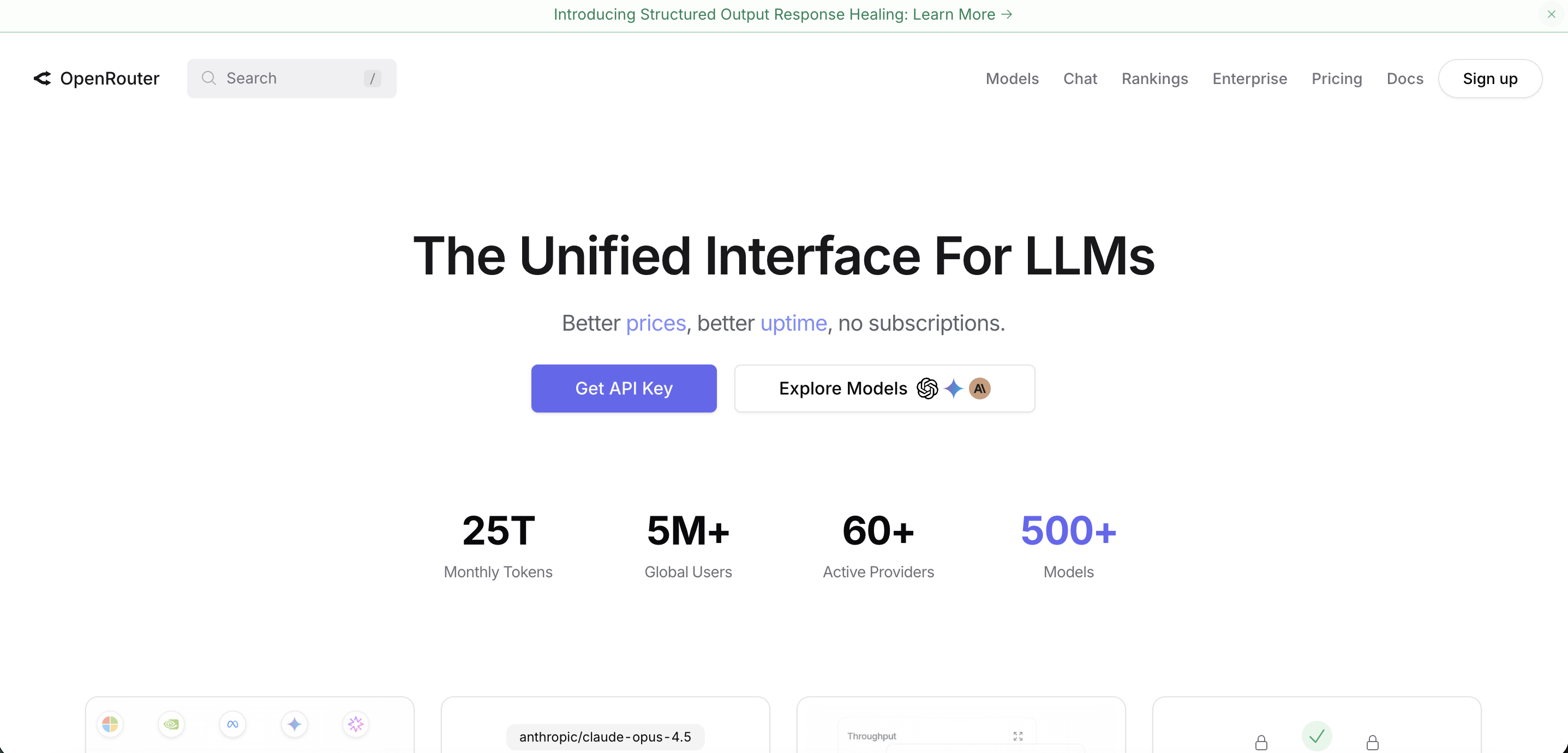
Get Your API Key
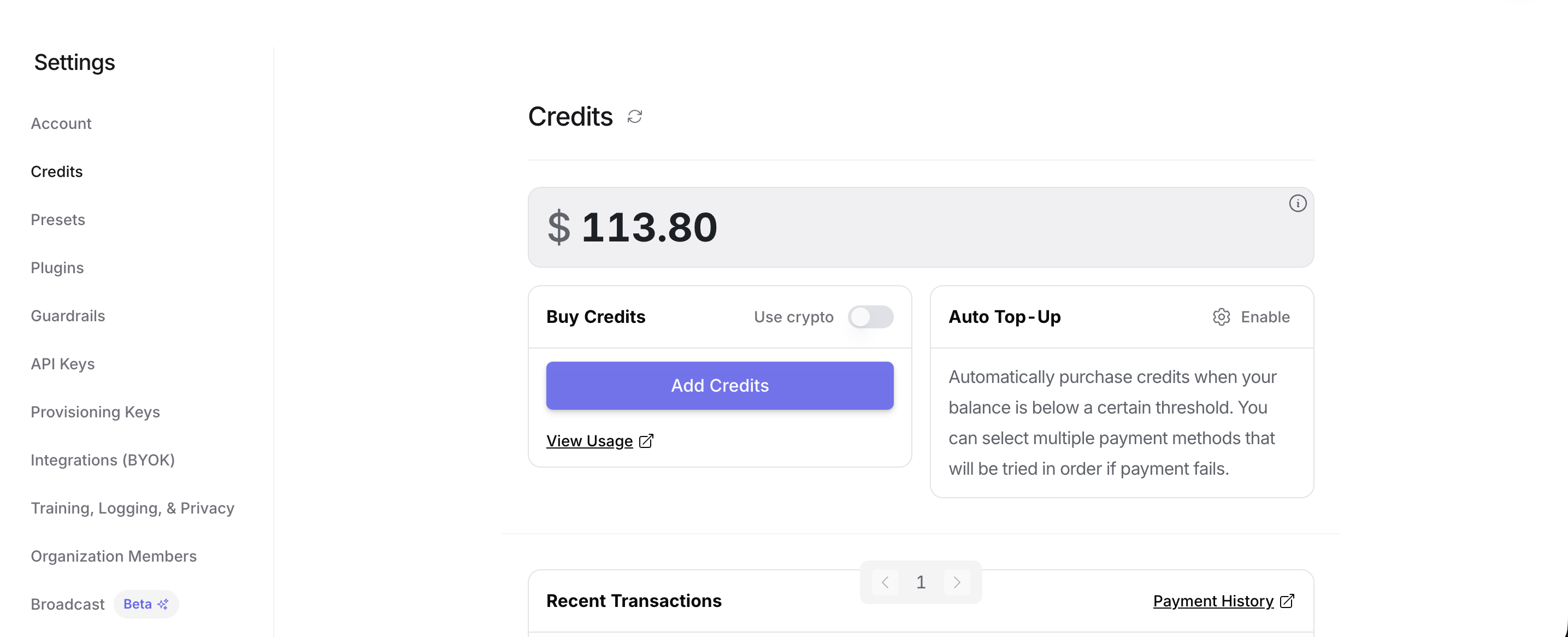
2. Add Credits
Navigate to "Credits". Add a small amount (e.g., $5) to start.
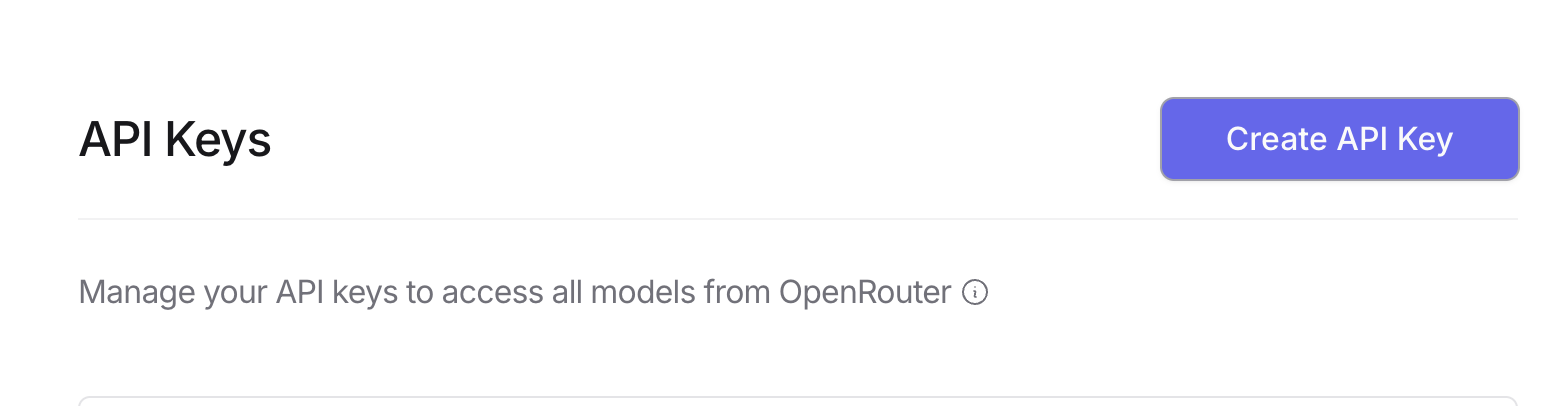
3. Create Key
Go to "Keys", click "Create Key". Copy this key.
2
Choose Your Mode

✨ Creation Mode
Start from scratch. Upload up to 10 reference assets and describe your vision.
- Best for: New campaigns, fresh concepts.
- Input: Text Prompt + Optional Reference Images.
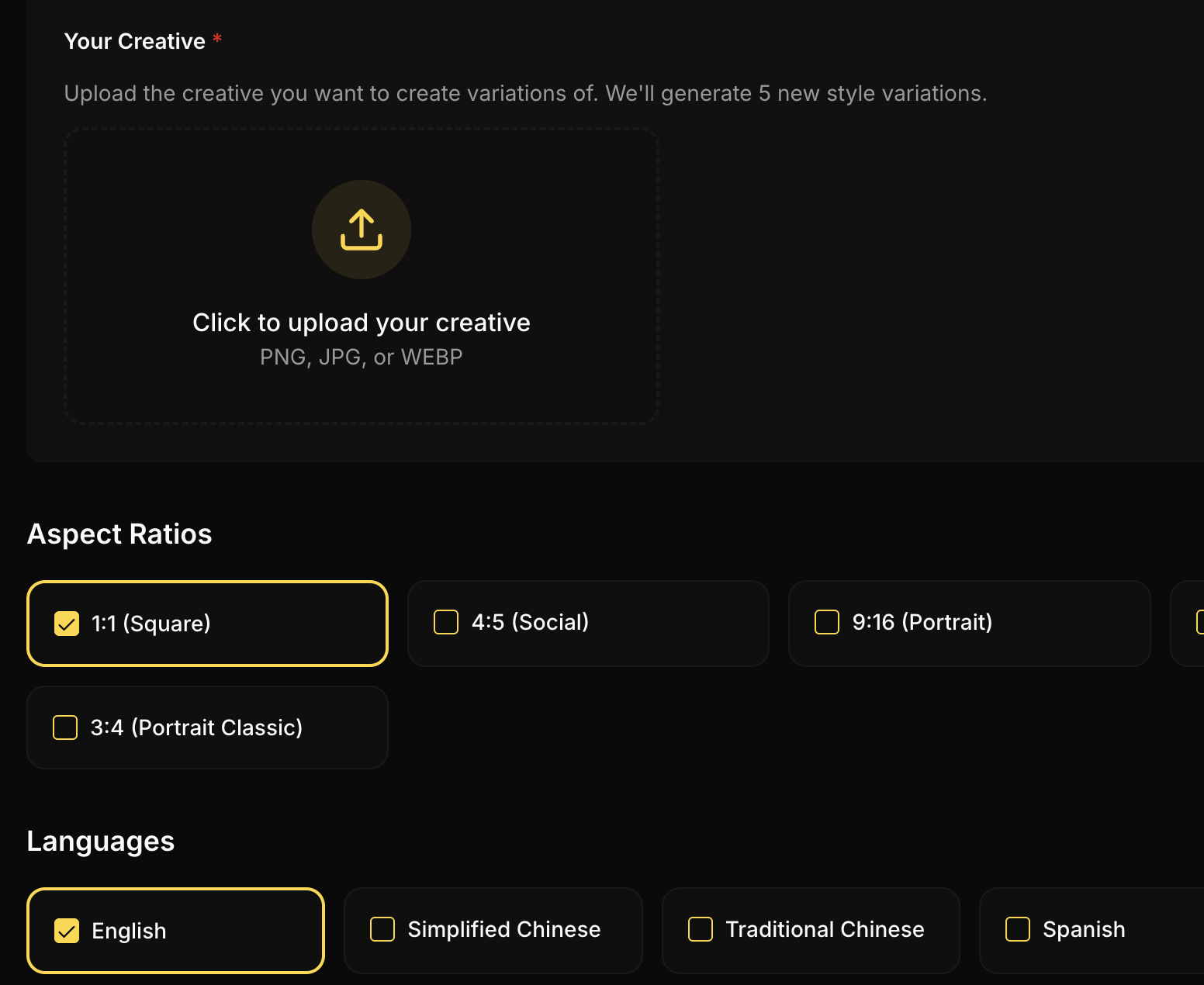
⚡ Variation Mode
Upload one high-performing creative. The AI will generate diverse visual variations.
- Best for: A/B testing, refreshing stale ads.
- Input: Single Reference Image.
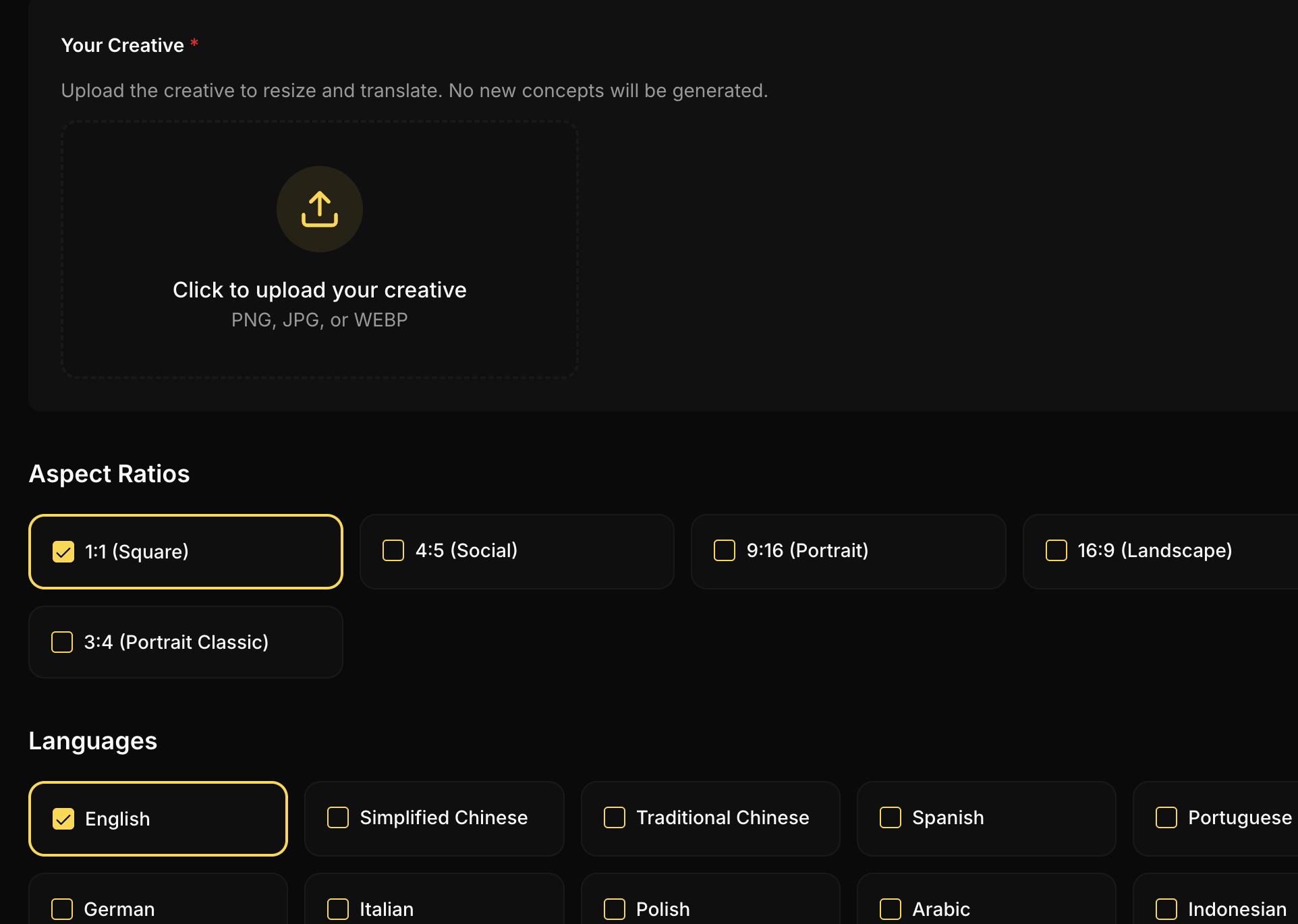
🌍 Expansion Mode
Skip generation and go straight to formatting. Resize or translate instantly.
- Best for: Localization, resizing.
- Input: Completed Asset.
3
Manage & Download
Your Asset Library
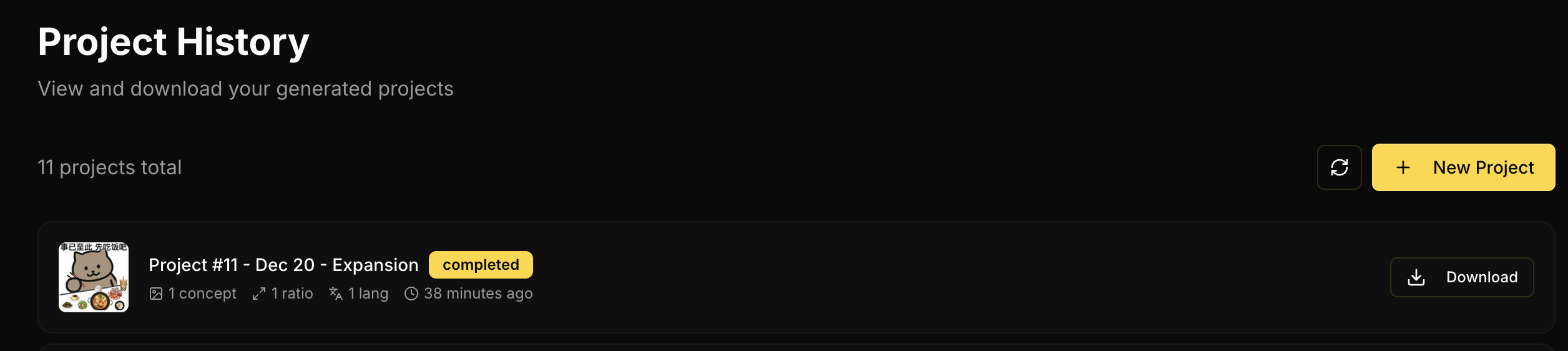
Every project is saved in your local browser history linked to your API key. You can revisit "Past Creations" at any time to re-download assets.
PRO TIP:
Use the "Download All (ZIP)" button to get a neatly organized folder containing all aspect ratios and language variants in one click.